Assigning Transcript Segment to Another Speaker
If you find out that a portion of the transcript is not assigned to the right speaker, you can correct this. You have the following options:
-
Assign portions of a segment to another speaker.
-
Assign one or several segments to another speaker.
To assign portions of a segment to another speaker:
-
 Click the Edit Mode button so it turns blue.
 -
Scroll to the segment that contains portions to be assigned to another speaker.
-
Select the word(s) to be re-assigned:
-
Click on a word to be re-assigned.
The selected word is highlighted.

-
To create a selection of words, highlight the words by using the mouse cursor.

-
-
Right-click the selection.
-
In the context menu that appears, select Change Speaker > <speaker name>.
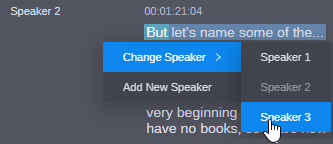
The selected words are assigned to the new speaker.
Depending on the time stamp of the words, the following happens:
-
The words are added to a previous segment of the speaker.
-
The words are added to a following segment of the speaker.
-
A new segment with the words is created for the speaker.
-
To assign segments or text across segments to another speaker:
-
Click the Edit Mode button so it turns blue.
-
Do one of the following:
-
Right-click a segment that you want to assign to another speaker.
-
Select a segment, then press Shift+click to select a range or Ctrl+click to select individual segments and right-click the selection.
-
Click in a segment and move the pressed-down mouse pointer up or down to select text across segments, then right-click the selection.
-
-
In the context menu that appears, select Change Speaker > <speaker name>.
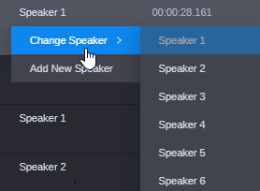
The segment, selection or segments are assigned to the new speaker; the name is updated in the Speakers column.