Using the Search App
The Search app enables you to quickly and easily locate assets across multiple connected systems such as Production Management, Asset Management, Wolftech News, and others. When you initiate a search, MediaCentral Cloud UX accesses a metadata index to return assets that match your search criteria. After you complete your search, you can filter and sort the assets to further refine the results.
If your local MediaCentral Cloud UX system is part of a multi-site environment, your search results might include assets from remote MediaCentral modules. For more information, see Working with Remote Assets.
If your system is licensed for the Log app, your search results might include session data that is associated with media assets. For more information, see Searching for Sessions and Associated Media.
 You can access the app by clicking the Search button in the Fast Bar at the top of the user interface. If you right-click on the Search button, you are presented with a menu that allows you to create (or delete) additional instances of the Search app. For more information on this feature, see Opening Multiple App Instances.
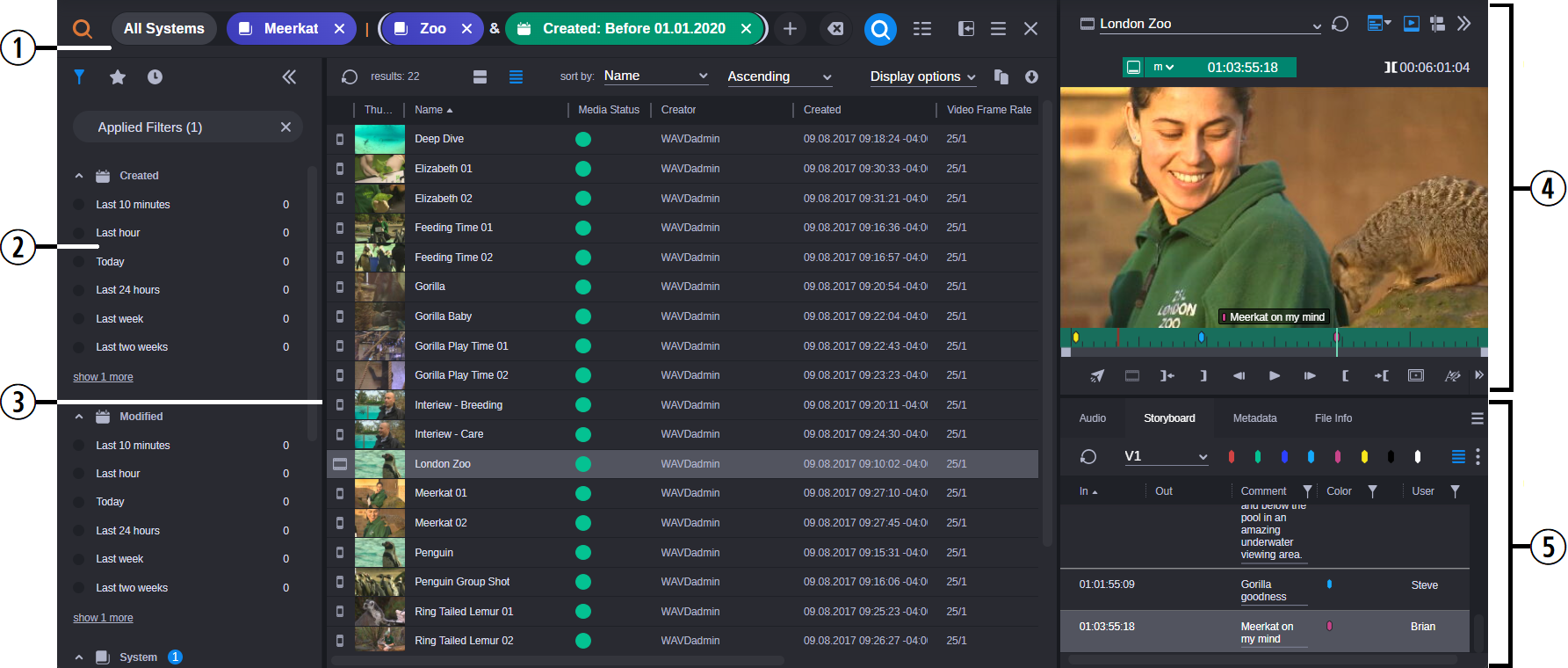
The app is divided into five primary sections, as shown in the following illustration.
|
|
Section |
Description |
|
1 |
Search header |
Allows you to define custom search parameters and execute searches. For more information, see Search App Header. |
|
2 |
Search Sidebar |
The sidebar includes options to narrow your search through a series of predefined filters. Additionally, options to create and use search favorites and to review your search history are also included. For more information, see Working with the Search Sidebar. |
|
3 |
Results toolbar and Search Results area |
Lists all assets returned by a given search. For more information, see Using the Results Toolbar and Search Results. |
|
Although not technically part of the Search app, the Asset Editor provides additional functionality: |
||
|
4 |
Asset Editor (Media Viewer) |
Displays selected media assets for review. For more information, see The Media Viewer and Asset Editor Tabs. |
|
5 |
Asset Editor (Tabs) |
The Tabs section of the Asset Editor provides additional detail about the currently loaded asset. |
For more information on keyboard shortcuts that can be used with the Search app, see Keyboard Shortcuts.