Changing the Priority of Processes
The Process app offers you an option that allows you to change the priority of a process. Five priority levels can be shown for a process: Idle, Low, Medium, High and Urgent. Use the Change priority control to change the priority of processes that are not in a final state (Created, Pending, Running, Paused).
Note the following limitations for changing the priority of processes:
-
If the priority of a process can be changed is defined by the process provider. Therefore, you will see the Change Priority feature only for some processes; depending on the processes shown in the Process app, the Change priority feature might not be applicable to any process.
Currently, only Distributed Processing Jobs support the Change Priority feature.
-
The Process app only shows the priorities that have been defined by the source system of the process. Therefore, only a subset of the priorities might be displayed for a process or no priority at all.
-
The change process priority feature is only available for administrators or members of a group with enabled Master of Jobs entitlement.
-
The Change priority control is associated with the Priority column, which is hidden by default.
-
You can only change the priority of one process at a time, multi-selection is not supported.
To change the priority of a process:
-
Show the Priority column.
-
Click the Display Options drop-down arrow.
-
Select the Priority check box.
-
Click an area outside of the menu to apply your changes.
-
-
Click on the Priority of a process.
For processes that support changing the priority, a context menu opens.
-
Select the priority you want to assign from the context menu.
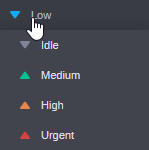
The new priority is assigned to the process.