Configuring Avid PM Referenced Assets
Referenced assets are assets that you have used in a sequence, but may not be in the same folder as to where the sequence is saved. For example, you used master clips A and B in creating your sequence, both from different folders, and then save the sequence to another different folder. When you then navigate to the folder where your sequence is saved using the Browse app, you will find that it only contains the sequence and not the master clips used. That is because these master clips are actually saved in different folders, and are only being referenced by the sequence that is in the folder.
Enabling this setting allows you to see the referenced assets of a sequence, even if they do not exist in the same folder, when you look for it using the Browse app. This helps to avoid only seeing a sequence and then needing to duplicate the master clips used by adding it to the folder.
This setting is disabled by default, and is only available if an Avid Production Management system is deployed.
To enable the referenced assets in Browse app:
-
Click the User Profile button on the right side of the Fast Bar and select User Settings.
The User Settings dialog box opens.
-
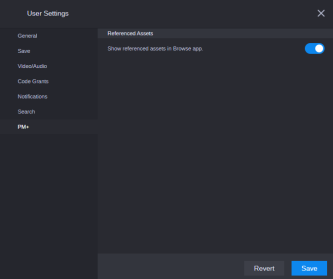
In the navigation panel on the left, select the PM+ group.
-
Enable the toggle Show referenced assets in Browse app.
-
Click Save.
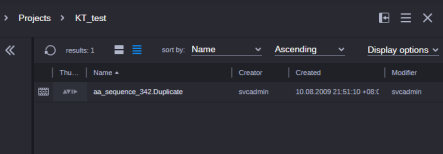
The following illustration shows a folder where a sequence is saved, but with the referenced assets setting disabled. Only the sequence that has been saved is displayed inside the folder.
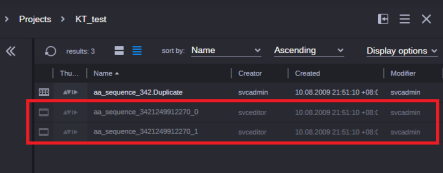
The next illustration shows the same folder where the sequence is saved, but this time with the referenced assets setting enabled. As the sequence is composed of two master clips saved in different folders, you will be able to see those as well. The master clips are greyed out to indicate that they are referenced assets.