Using the Inspector Asset Locations Tab
The Asset Locations tab shows where an asset is located in the database. It provides a list of locations indicating where the asset is stored in the database folders.
To view the Asset Locations tab:
-
Open an asset in the Inspector app.
-
Select the Asset Locations tab.
The example below illustrates how the Asset Locations tab shows where a selected sequence is located in the database:
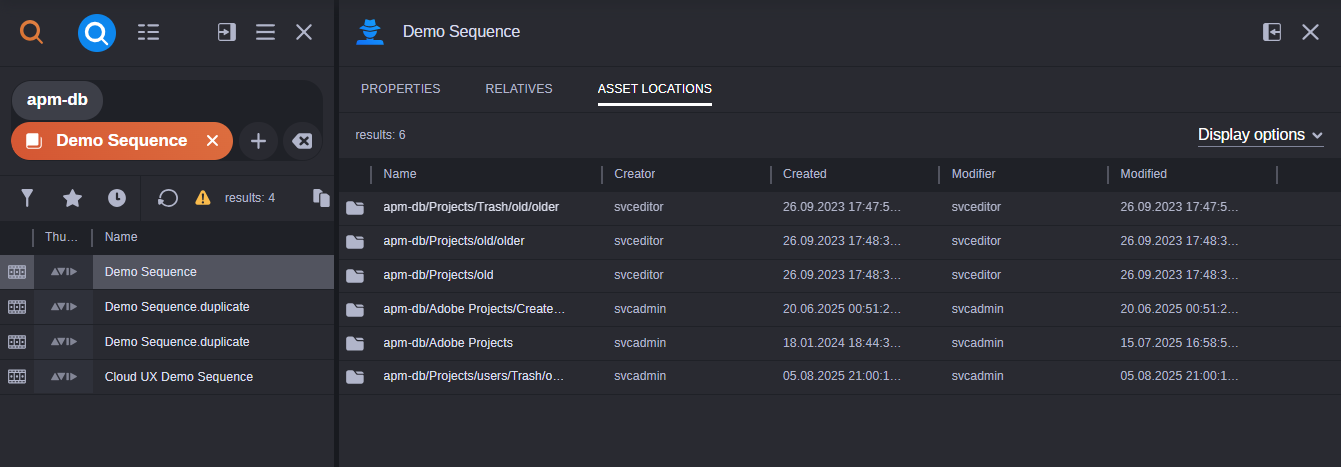
This means that the selected sequence is stored in multiple locations in the database. Other information are also displayed within the Asset Locations tab. Similar to the Relatives tab, you can also control what other properties to display through the Display Options drop down menu.
A copy asset path button is also available to copy the full location of the asset in the database folders into your clipboard for a quick copy and paste action without needing to manually retype long asset locations.
To copy the path of the selected asset:
-
Hover your mouse over to the asset location you intend to copy.
-
Click the copy asset path button that appears right next to the path name.
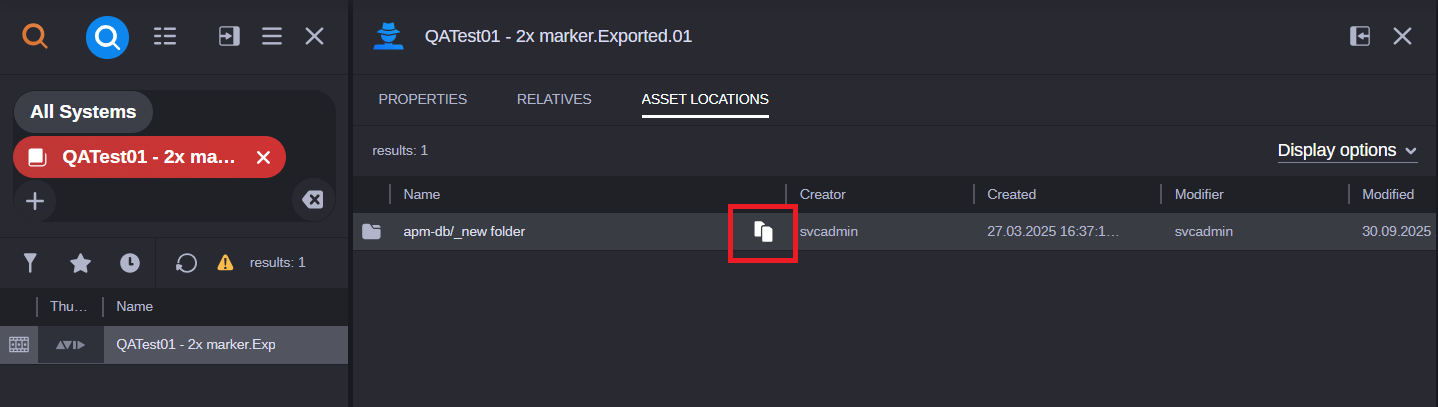
This simplifies user experience and accessibility for tasks that may require typing addresses by eliminating the need for manual text selection and copying using keyboard commands.