Using the Inspector Properties Tab
The Properties tab in the Inspector app allow you to view information about an asset, similar to the Metadata tab found in Asset Editor. However, unlike in the Metadata tab, you can only view the information of the selected asset and are not allowed to edit it. If you make any changes to the asset's metadata using the Metadata tab, this also reflects in the Properties tab.
The properties displayed in the Properties tab are determined in the Property Layout settings of the Avid Production Management Administrator application. For information on system and custom properties, and assigning permissions, please see the MediaCentral | Cloud UX Installation Guide or the Avid Production Management Engine and Archive Engine Administration Guide.
Selecting an asset to inspect opens the Properties tab by default. The Properties tab is divided into two sections, System Properties and Custom Metadata.
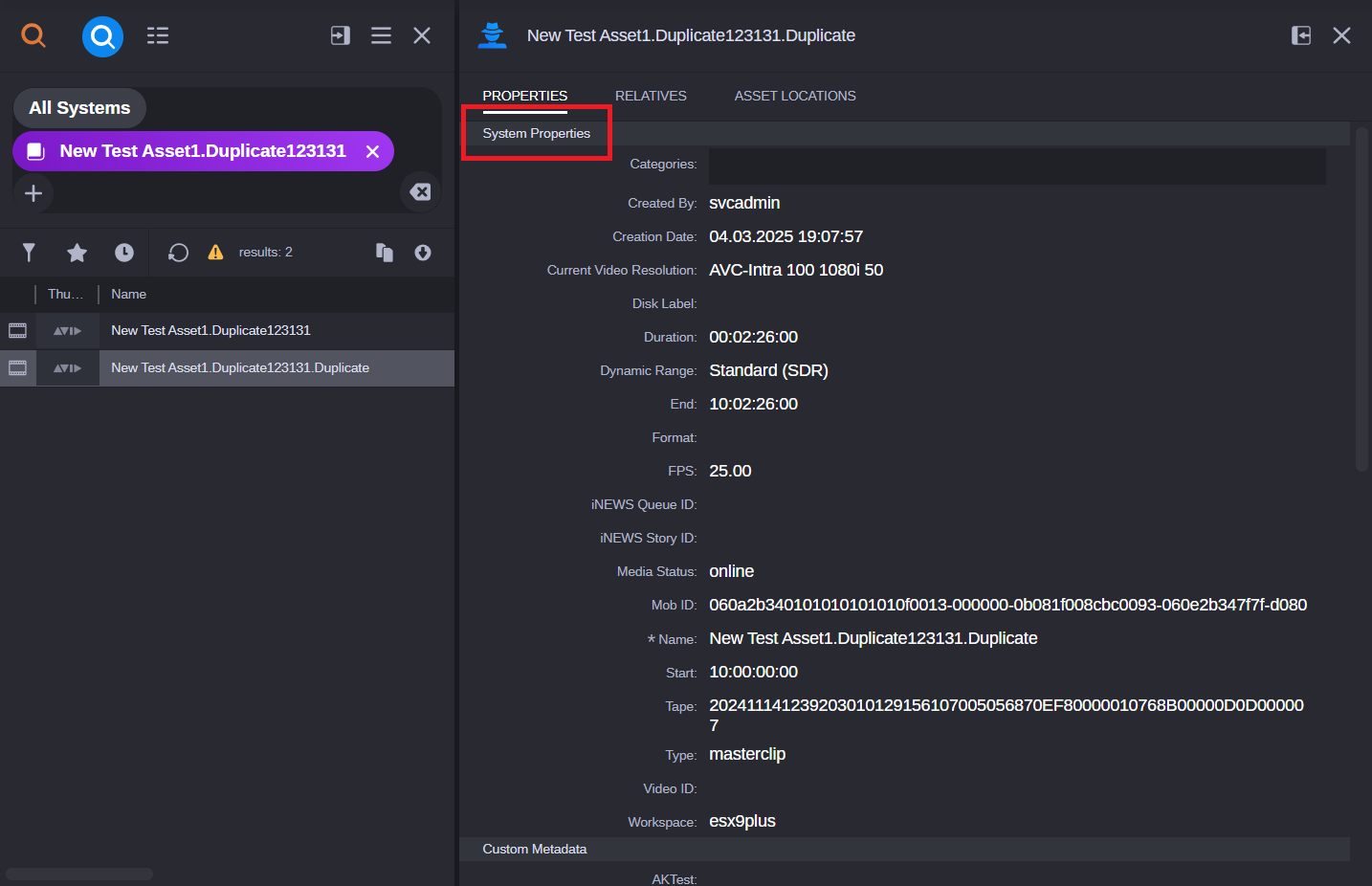
System Properties
The System Properties section provides information about an asset's metadata, such as Creation Date, Duration, Media Status, and other properties. Some properties are available and enabled by default, and therefore cannot be disabled. For more information about which properties are available and how to display them, please visit "Using the Avid Production Management Administrator App" in the MediaCentral | Cloud UX Installation Guide or the Avid Production Management Engine and Archive Engine Administration Guide.
Custom Metadata
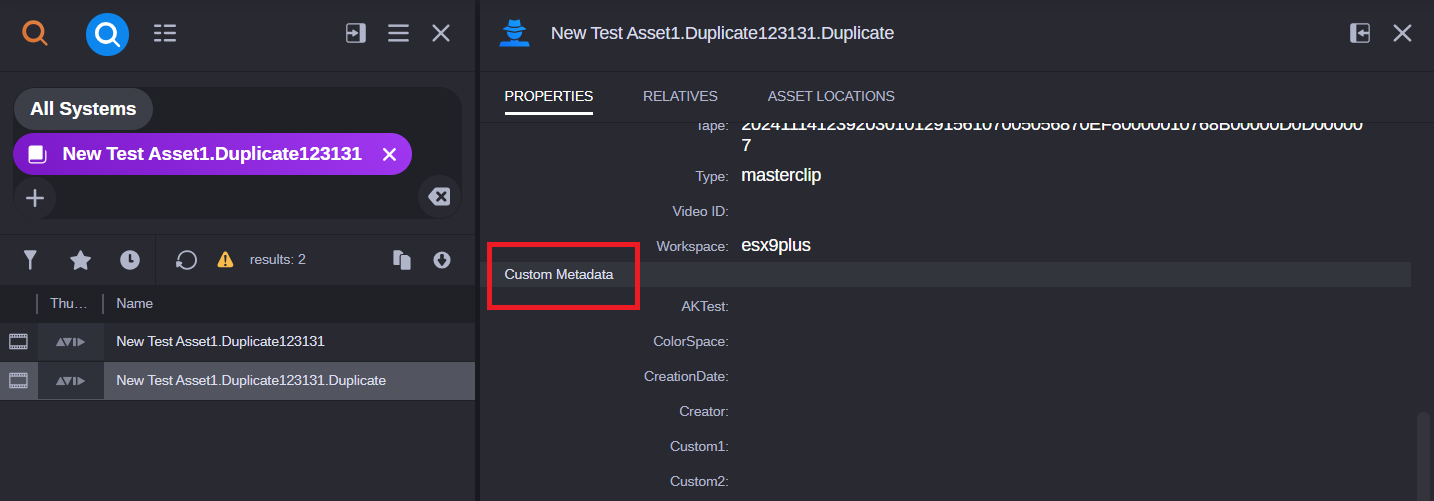
Scrolling through the Properties tab allows you to view custom properties that can be used to associate with the selected asset. This section contains properties that have been created by your system administrator in order to assign indentifer/s to an asset or group of assets. For more information, please visit "Using the Avid Production Management Administrator App" in the MediaCentral | Cloud UX Installation Guide or the Avid Production Management Engine and Archive Engine Administration Guide.
The following illustration shows examples of custom properties enabled for display in the Custom Metadata section of the Properties tab: