Using the Inspector Relatives Tab
The Relatives tab in the Inspector app provide information about other assets that are related to the asset currently selected — these could be clips that are referenced by a sequence, or sequences that reference a clip — as it is possible that assets (such as master clips, subclips, and/or sequences) can be associated with one another. The Relatives tab allows you to view which other assets comprise the specific asset as well as which assets reference the specific asset.
To view the Relatives tab:
-
Open an asset in the Inspector app.
-
Select the Relatives tab.
The example below illustrates how the Relatives tab displays the media relatives of a selected sequence:
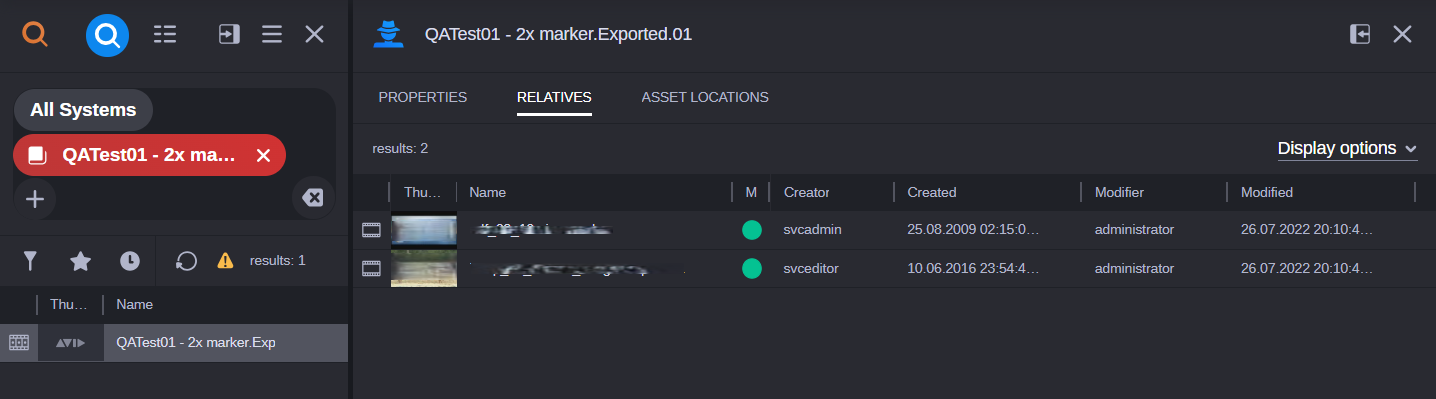
This means that the selected sequence is comprised of two master clips. Other information such as Name, creation date, and Media Status are also displayed within the Relatives tab. You can also control what properties you want to display by selecting the Display Options dropdown menu, and then selecting the desired properties you want to see when viewing the media relatives of an asset.
To select properties for display in the Relatives tab:
-
Open the Display Options dropdown menu located in the upper right area of the Relatives tab.
-
Enable or disable the properties you want to be displayed in the Relatives tab.
-
Click away from the dropdown menu to activate the selection.