Opening a Clip in the Asset Editor
You might have noticed a collapse/expand icon on the right side of the window. This opens and closes the Asset Editor.

The Asset Editor is always available, not only for Browse, but for Rundown, Search, and all other apps. You can use the collapse/expand icon to open the Asset Editor, or just double-click on an asset. In this section we’ll open and view a clip.
The following illustration shows the Asset Editor with a master clip loaded and the two main areas outlined: the Media Viewer and the Asset Editor tabs.
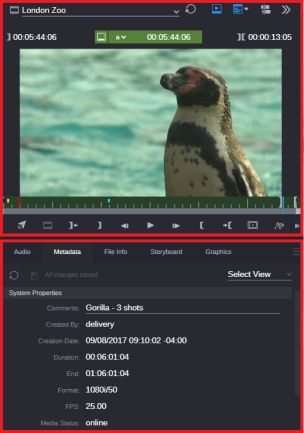
The Asset Editor also includes the Sequence Timeline, which you use when working with sequences. We’ll look at that later in this chapter.
Playing a Clip
You can use the playback controls, located below the monitor, to play and navigate through the clip, or just drag the blue position indicator to scrub through the clip.
You can also use keyboard shortcuts to navigate through a clip. For example, use the space bar to start and stop playback, or use the J-K-L keys for variable-speed play. For more information about keyboard shortcuts, see Asset Editor Shortcuts.
Reviewing the Tabs
The tabs below the Media Viewer allow you to monitor and adjust audio levels, view more information about the loaded asset, and much more. For a more detailed look, see Asset Editor Tabs.