Restoring an Asset from MediaCentral | Asset Management
If your organization uses MediaCentral Asset Management (MAM) to archive assets and want to restore an asset, you can use the following process to restore assets from the MAM archive system to the Production Management database.
To use this service, you must ensure that both the system configuration and the restore profiles for Production Management and Asset Management are properly set up. For detailed guidance on configuring these settings, please refer to the MediaCentral | Asset Management documentation available on the Avid Knowledge Base.
To initiate a restore operation:
-
Do one of the following:
-
In the Browse app, navigate to the desired folder that contains the archived asset you want to restore.
-
In the Search app, select the MAM system name as the System filter criterion and search for archived assets you want to restore.
-
-
Select an asset and do one of the following:
-
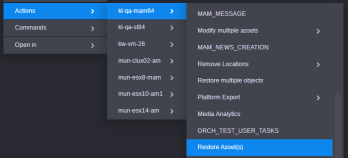
Click the App Menu button and select Actions > MAM system name > Restore Asset(s).
-
Right-click and select Actions > MAM system name > Restore Asset(s).
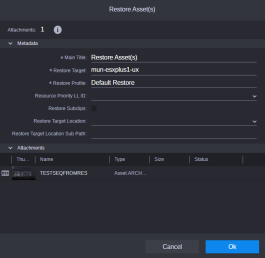
The Restore Asset(s) dialog box is displayed.
-
-
Provide a name for the process in the Main Title field. This title helps you to identify the process in the Process app. If you do not provide a title, the default title “Restoring Asset(s)” is shown as the process title in the Process app.
-
Select a restore target location from the Restore Target menu.
-
Select a profile from the Restore Profile menu.
-
(optional) You can select the priority level at which the restore request is processed, as well as the target location in the system where the restored asset will be saved.
-
Click OK.
The Restore Asset(s) process is created.
-
(optional) Check the status of this task using the Process app.
Restoring an Asset using Shared Library
If your organization uses Shared Library, you can use an alternate process to restore archived Production Management assets to its online database.
This workflow uses the Shared Library “Restore Media from Archive” process. Therefore you must have privileges to use Shared Library. The Shared Library profiles configuration in the Workflow Settings app needs to contain at least one Restore profile for Archive Production that references the same named Interplay Restore Service profile. For more information, see the MediaCentral | Shared Library Installation and Configuration Guide.
To restore an asset using Shared Library:
-
Do one of the following:
-
In the Browse app, navigate to the desired folder that contains the archived asset you want to restore.
-
In the Search app, select “interplay-archive” as the Type filter criterion and search for archived assets you want to restore.
-
-
Select an asset and do one of the following:
-
Click the App Menu button and select Actions > Restore Media from Archive.
-
Right-click and select Actions > Restore Media from Archive.
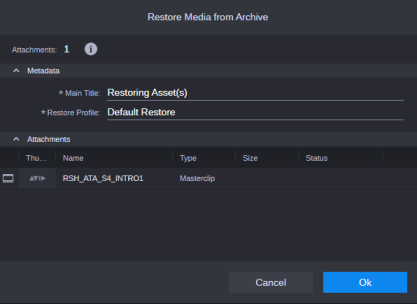
The Restore Media from Archive dialog box is displayed.
-
-
Provide a name for the process in the Main Title field. This title helps you to identify the process in the Process app. If you do not provide a title, the default title “Restoring Asset(s)” is shown as the process title in the Process app.
-
Select a profile from the Restore Profile menu.
-
Click OK.
The Restore Media from Archive process is created.
-
(optional) Check the status of this task using the Process app.