Restoring an Asset from MediaCentral | Archive Production
After you archive an asset, you might need to later restore that asset from the archive system. There are several scenarios in which you might want to restore an asset. For example:
-
The asset and its media does not exist on the local Production Management system.
-
The asset exists on the local Production Management system, but the media is archived.
-
The asset and low-res media exist on the local Production Management system, but the high-res media is archived.
Note the following about archived assets and the archive / restore workflow:
-
You can search for archived assets in the Search app. If you know that an asset is archived, you can improve search time by selecting the Archive system from the System filter.
-
You can display and edit the properties of archived assets in the Metadata tab.
-
You can display the markers and restrictions of archived assets in the Storyboard tab.
-
You cannot play an archived asset. If you try to play an archived asset, the Media Viewer displays a black screen.
-
You can restore only one asset at a time. Multiple selection is not supported.
-
You must configure your Production Management workgroup with the Restore service, and you must have Restore profiles available in Production Services. For more information, see the Avid Production Management Production Services Setup and User’s Guide.
The following workflow allows you to restore assets from a MediaCentral Archive Production to a connected MediaCentral Production Management module or Avid Production Management system.
To restore an asset from Archive Production:
-
Do one of the following:
-
In the Browse app, navigate to the desired folder that contains the archived asset you want to restore.
-
In the Search app, select your Archive module in the Type filter, and search for the archived assets that you want to restore.
-
-
Select an asset and do one of the following:
-
Right-click on the asset and select Restore from the context menu.
-
Select the asset, click the App Menu button and select Restore.
-
-
Select the target Restore profile from the available profile list.
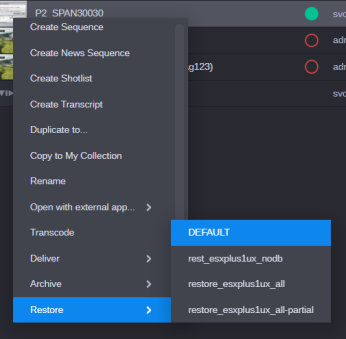
MediaCentral Cloud UX initiates the restore process. When the restore process is complete, you can play the asset in the Asset Editor’s Media Viewer.
-
(optional) Check the status of this task using the Process app.
If the asset you are trying to restore has not been previously archived, a notification appears and aborts the restore process. Viewing the event in Process app shows the following message:
