Segmenting Stories
You can write a story in a single segment or divide it into multiple segments. The following illustration shows a story in a single segment.
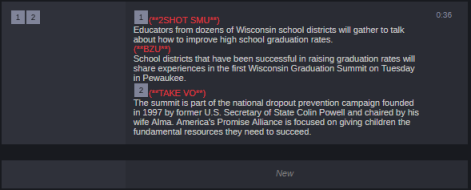
You can use segments to time the text and integrate it with video, audio, graphics, and production cues. See Adding Media to a Story. Multiple timed segments are combined to form the overall story. The following illustration shows the same story as the one in the previous example, but written split into two segments.
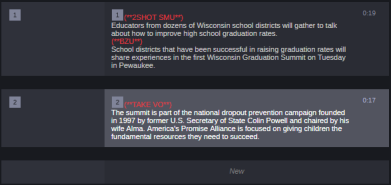
You can add or delete segments, split a segment in two, and rearrange segments within a story.
To add a segment to a story:
-
Click in the segment marked NEW located at the bottom of the story and begin typing.
-
Highlight text in an external text editor such as Word and drag and drop the highlighted text to the segment marked NEW located at the bottom of the story.
To split a segment in two:
-
Position the cursor in the story where you want to split the text into two segments.
-
Do one of the following:
-
Right-click and select Split Segment.
-
Press Ctrl+] (Windows) or Ctrl+] (macOS).
If your story is associated with a news sequence, splitting a segment creates a new empty timing block after the original associated timing block.
-
To rearrange segments in a story:
-
Click the "grabber" of the segment you want to move and drag it up or down into its new location. The dedicated grabber, shown below in a red rectangle, is visible on mouse hover and for the focused segment.
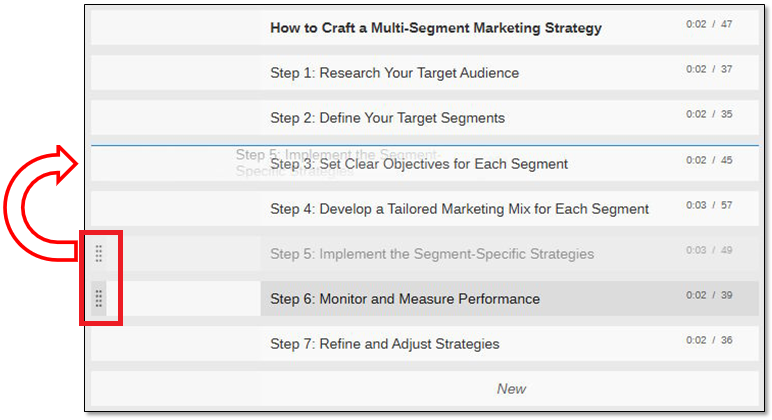
During reordering, the "dragged" segment is visible, as shown by "Step 5" in the above example, and the new position is indicated with a blue line.
n When you rearrange segments, any production cues (including graphics) in those segments are also moved and renumbered as needed.
To delete a segment and the text in the segment:
-
Right-click the segment you want to delete and select Delete Segment.