Setting Reservations (Avid Production Management)
Reservations are a type of protection that a user or administrator can apply to a folder from within MediaCentral | Cloud UX. A reservation prevents other users from deleting or moving assets from the folder. It provides an additional layer of protection to ensure that all of the files and metadata associated with an asset can be protected against accidental deletion. Reservations can only be applied to folders, and extend from the parent folder down through each level of the folder hierarchy and include all assets within those folders.
n This is currently limited to Avid Production Management folders only. You cannot set reservations to MediaCentral | Production Management folders within MediaCentral | Cloud UX. To set reservations to MC|PM folders, you must do this within the Avid Production Management Access client instead.
n You cannot set reservations on the root folder of the database.
Similar to the functionality of setting reservations in Avid Production Management Access, a user must have Read/Write permissions to the folder to be able to set reservations to it.
To set reservations to a folder:
-
Log in to your MediaCentral | Cloud UX server.
-
In the Browse App, navigate to the Avid Production Management database and find the folder you want to set reservations to.
-
Do one of the following:
-
Right-click on the folder and select Reservations from the context menu.
-
Select the folder, click the App Menu button and select Reservations.
-
-
The Reservations window opens and lets you set the reservation parameters on your folder.
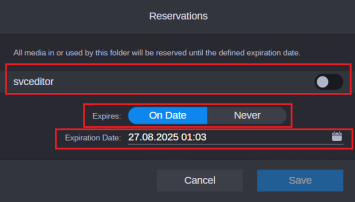
The following table provides more information about the available items in the Reservations window:
Item
Description
User Toggle Button
Allows you to enable or disable the reservation by sliding the toggle on.
Expires Field
Lets you choose between setting an expiration date for the reservations, or leaving the reservations to never expire.
If set to On Date, this allows you to set the exact expiration date of the reservation.
If set to Never, the Expiration Date field changes to Never and will not allow you to set its expiration date.
Expiration Date
Lets you set the expiration date of the reservation placed on the folder. A button in the form of a calendar allows you to specify the exact duration of the reservation by month, day, and year.
The default Expiration Date is configurable through the Configuration Settings app. For more information, please see the Using the "Configuration Settings App" topic in the MediaCentral Cloud UX Installation Guide.
-
Click Save.
-
MediaCentral Cloud UX adds a red circle over the folder icon and to all of the subfolders and assets inside the folder, indicating that the folder and its contents are now reserved.

To remove reservations to a folder:
-
Log in to your MediaCentral | Cloud UX server.
-
In the Browse App, navigate to the Production Management database and find the folder you want to remove reservations.
-
Right-click on the folder and then select Reservations.
-
The Reservations window opens and lets you disable the reservation by sliding the toggle off.
-
Click Save.
-
MediaCentral Cloud UX removes the red circle over the folder icon and to all of the subfolders and assets inside the folder, indicating that the folder and its contents are no longer reserved.
Setting Reservations for Administrators
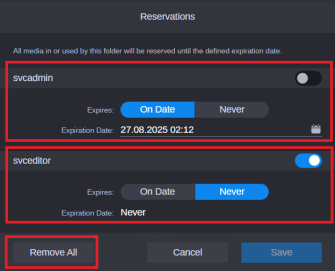
As an Administrator, you can modify other users' reservations, as well as set your own reservations and expiration parameters to specific dates or to never expire.
There is also a Remove All button that toggles all set reservations to turn it off. Making any changes activates the Save button which processes all these requests with a single click.
Working with Inherited Reservations
Since reservations extend from the parent folder down to each level of the folder hierarchy, all subfolders and assets within that parent folder inherit the reservations applied by the users. This is referred to as inherited reservations.
There are also instances where you or another user might apply reservations to the same folder. If two users share an asset in a folder and both have a reservation on this folder, neither user can delete or move the asset. Unless the reservation expires or is removed by the user who created it, only the administrator can remove the reservations.
The following illustration shows a folder with an inherited reservation set by two users:
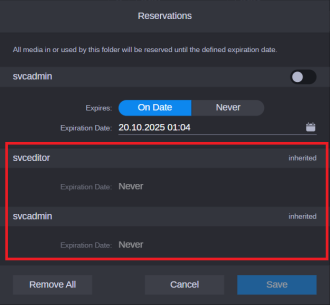
This means that this is a subfolder inside the parent folder that has reservations set by the two users. All contents of the subfolder are protected and cannot be modified unless both users remove their reservations from the parent folder, wait for it to expire, or have an administrator remove it for them.