Navigating within the Translation
When you play back a master clip or subclip in the Asset Editor's Media Viewer or position the playhead in the Asset Editor's timeline,
Note the following when navigating the
-
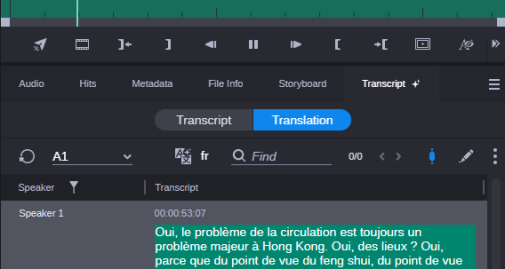
If the Sync Playhead toggle button is selected (blue button, default), during playback in the Asset Editor's Media Viewer or when you position the playhead in the timeline, the
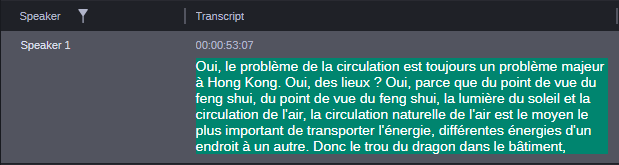
Vice versa, when you select a
-
If the Sync Playhead toggle button is deselected (gray), during playback in the Asset Editor's Media Viewer, corresponding
-
When you enable the Edit Mode button to edit the
To navigate the
-
Open an asset in the Asset Editor.
-
Open the Transcript tab.
The Transcript tab opens in Transcript mode.
-
Click the Translation button to switch to Translation mode.

-
 (optional) Click the Orientation menu in the Asset Editor toolbar and select the dual column view.
 -
Select a transcript from the transcript selection control.
-
Select the translation which you want to view from the translation selection control.
-
To navigate with enabled synchronization:
-
 (if inactive) Activate the Sync Playhead button.
 -
Start playback or move the playhead in the timeline.
-
-
When the position is between two segments (gap), the left segment is highlighted in the Transcript tab.
-
-
Click on a segment in the Transcript tab.
The
-
-
To navigate with disabled synchronization
-
 Deactivate the Sync Playhead button so it turns gray.
 -
Start playback or move the playhead in the timeline.
-
Click on a segment in the
Neither the video in the Asset Editor nor the playhead in the timeline is updated.
-