Renaming Transcripts
The transcript name is shown in the transcript selection list. A transcript name can be created as follows:
-
Set in the Transcript Name field in the Create Transcript dialog box.
-
Set in the Transcript Name field in a Media Analytics action in Rules Editor or Schedule Editor.
-
If the name was not provided, the transcript is named according to the audio track(s) for which it was created.
You can rename a transcript at any time, as described in the following procedure. Renaming a transcript is supported in both modes of the Transcript tab (Transcript and Translation).
To rename a transcript:
-
Open the transcript selection.
-
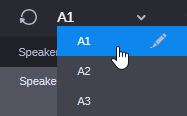
Hover the cursor over the transcript you want to rename.
An edit button (pencil) is shown.
-
 Click the edit button.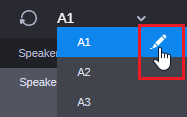
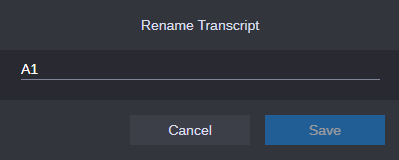
The Rename Transcript dialog box is shown.
-
Type the new transcript name in the text field.
The Save button is enabled.
-
Click Save.
The Rename Transcript dialog box is closed. The name change is directly applied.
In the following example, A1 was renamed to English.
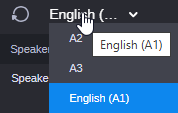
For a renamed transcript, the track name is additionally shown in brackets. If the name cannot be shown completely in the transcript selection, you can see the full name and track in a tool-tip.