Using the Timing Status Bar
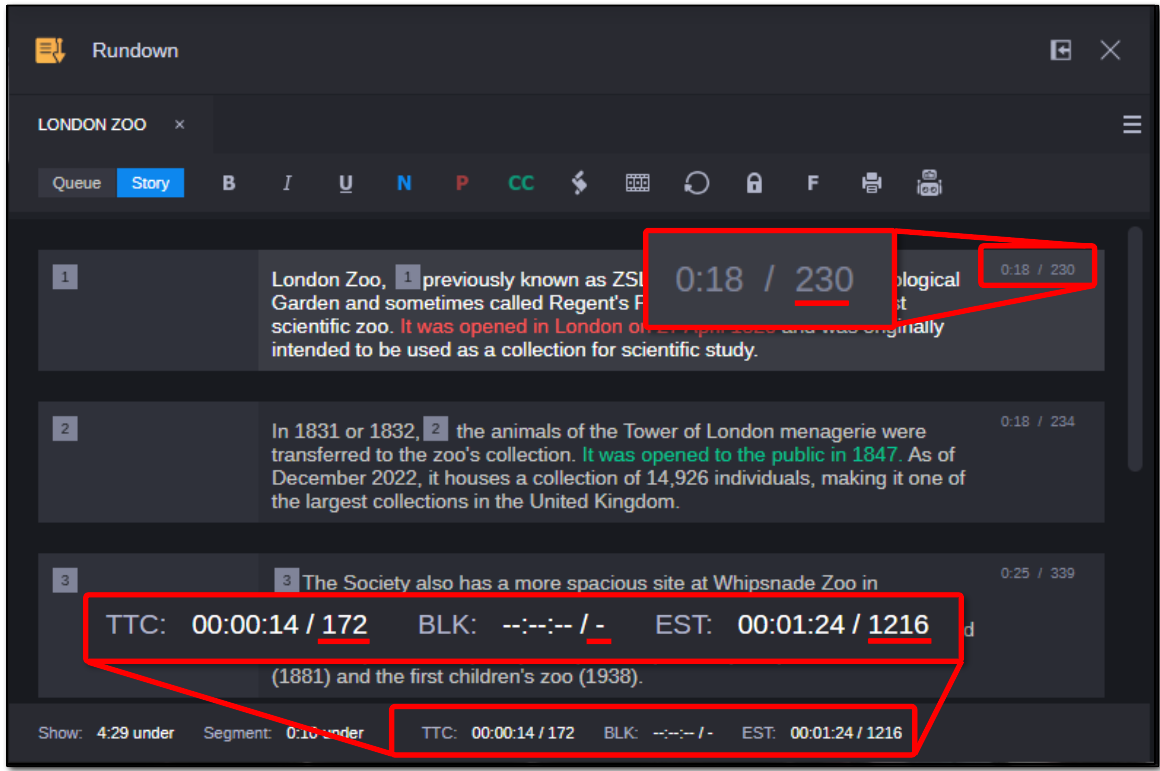
During show preparation, prior to going on-air, producers may need to determine whether a show will end on time with its current rundown of stories. For this reason, in the Rundown App, a new Timing status bar may be displayed at the bottom of the application window. It combines, into a single status bar, both show and segment information along with information for timing a story's text.
The fields on the Timing status bar are:
|
Field |
Description |
|---|---|
|
Show |
This field displays whether the show's duration is over or under the planned time allotted. If the duration of the show's stories match the show's planned duration, then the word "exact" appears in the field. |
|
Segment |
This field displays whether the duration of the selected story's segment is over or under. If the duration of the stories in the segment match the planned segment duration—as defined by the hard start time and hard end time—then the word "exact" appears in the field. |
|
TTC |
Time to cursor: This field displays the estimated "text time" from the story's beginning to the current cursor position in the story body. If enabled, it may also display the character count for the text from start of story to cursor position, excluding production cues, presenter instructions, and closed captioning. Text times include the runs time for production cues and audio time, also known as the read-time, based on the presenter's read rate if defined; otherwise, the system default read-rate is used. Presenter instructions and closed caption cues do not contribute to text time calculations. n For the Timing Bar to take into account any changes to the read rate based on the presenter without saving the story, installation of Newsroom Management 2023.7.1 is required. |
|
BLK |
Time of blocked (selected) text: This field displays the estimated "text time" of the selected portion of the story body. If enabled, it may also display the character count for the block of text. |
|
EST |
This field displays the total estimated "text time" of the story. If enabled, it may also display the character count of the story. Production cues, presenter instructions and closed captioning are excluded from the character count. |
n The Timing status bar will show timing in either the TTC field or BLK field, but not both simultaneously.
To show or hide the Timing status bar:
-
Click the App Menu button located at the top right corner of the Rundown app and select Show Timing Bar.
-
Click the App Menu button located at the top right corner of the Rundown app and select Hide Timing Bar.
n The availability of the Timing status bar does not depend on the Text Timing Clocks queue trait. Also, the Show/Hide Timing Bar setting is retained across user sessions.
To enable display of character count:
-
Click the App Menu button located at the top right corner of the Rundown app and select Show Character Count.
When enabled, the character count will appear in the Timing status bar and in the story segments, as highlighted below: