Creating the Initial Summary for a Transcript
To create the initial
c You can start summary creation for a master clip but also from a subclip. Triggering the summary creation from a subclip will not affect the summary of the master clip.
To create the initial
-
Open an asset in the Transcript tab.
-
Select the transcript from the Transcript selection control.
-
Click the

If the
Only for users of a group that has the entitlement Avid AI
-
Click the
The
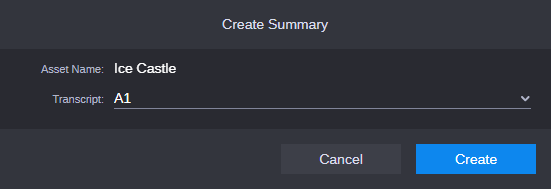
-
Do not change the transcript that is already selected in the Transcript list.
-
Click the
The dialog box is closed and the
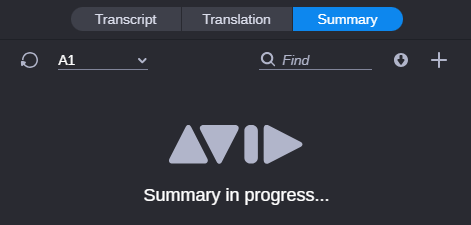
If the
-
(optional) Open the Process app and monitor the
-
Wait until the
-
Once the summarize job has completed, the Summary view display auto-refreshes and the summary is shown.
-
If the summarize job fails before completion, the Summary in progress message will be replaced by the Summary failed message.
-