Deleting Assets (Avid Production Management)
Starting in MediaCentral | Cloud UX 2025.10, you now have the ability to delete Avid Production Management assets directly within the MediaCentral Cloud UX user interface. This streamlines the media management workflow and grants you the flexibility of being able to perform delete operations both within MediaCentral Cloud UX, as well as in the Production Management Access application.
This chapter describes the process and rules for deleting Avid Production Management assets. Similar to the functionality of deleting assets in Avid Production Management Access, you must have the appropriate user role to be able to perform delete operations to assets in MediaCentral Cloud UX. For deleting assets using the Access application, please visit the "Deleting Assets" topic in the Avid Production Management Access User's Guide.
Deleting Avid Production Management Assets
You can utilize the Search and Browse app in MediaCentral Cloud UX to find and review the assets in which you want to delete, similar to how you would search and browse assets using the Production Management Access application.
To delete an Avid Production Management asset:
-
Locate the asset/s you want to delete, either by using the Search or Browse app.
Depending on whether you are opening the Delete dialog from Search or Browse, it will behave differently.
-
If you are opening the dialog from Browse, the Delete dialog already has a folder context. The asset folder on the left will be preselected, and cannot be modified.
-
If you are opening the dialog from Search, the asset you searched for can be referenced from many folders. The tree on the left will show all locations that Search knows for the asset you are trying to delete, and you can pick the folders on the browse tree the asset will be removed from. Once the last referenced folder is removed, the asset will move to the 'unreferenced assets' folder. By default, media can only be deleted from if all associated assets are deleted as well.
-
-
Do one of the following:
-
Right-click on the asset/s and select Delete from the context menu.
-
Select the asset/s, click the App Menu button and select Delete.
-
-
The Delete dialog window opens and displays information about the selected asset/s.
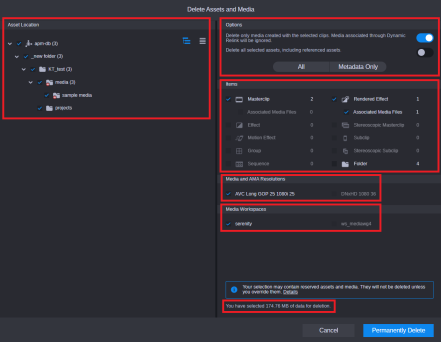
The following table describes the items you can find in the Delete dialog window:
Item
Description
Asset Location
This section gives you information where the assets are located in the Avid PM database. This also acts as a filter as you can select or deselect among the locations to include or exclude assets in those specific folders for deletion.
n The select/deselect feature is only available if the dialog has been opened from Search.
Options
This section allows you enable the following options depending on your intended outcome:
-
Delete only media created with the selected clips. Media associated through Dynamic Relink will be ignored.Enable this option if you are working with clips that have two or more sets of media files associated through Dynamic Relink, and you do not want to delete all associated files. Disable this if you want to delete all the media files associated through Dynamic Relink.
-
Delete all selected assets, including referenced assets. You can enable this option if you want to delete referenced assets as well as the assets that reference them. Disable this option if you want to keep the referenced assets.
There are also two buttons available for selection:
-
All - select this option if you want to delete all items, including media and metadata.
-
Metadata Only - select this option if you only want to delete metadata.
n Selecting the "All" option will show you the amount of data that will be deleted at the bottom of the dialog window.
Items
This section allows you to select or deselect the specific types of assets you want to include in the deletion process. You can select clips or other Avid assets, associated media files or both clips and media.
n If you select media files for deletion, the amount of data that will be deleted is listed.
Media and AMA Resolutions
If you selected media for deletion, select the resolutions you want to delete.
This section lists all available video resolutions and audio formats for the clips you selected, with media associated through the Dynamic Relink included. You can deselect the resolutions that you do not want to be included in the deletion. If a clip has separate media files for video and audio, you can select only audio or only video media to be deleted. Selecting the resolutions also selects the media workspaces in which they are located.
n Deleting AMA media will never delete the actual media - it will only remove the reference that Production Management maintains, pointing to the media location.
Media Workspaces
This section lists all workspaces in which the selected media are listed.
-
-
Select the items you want to delete.
-
You may also get a warning message near the bottom of the dialog window indicating that some items may be reserved and need to be overwritten before they can be deleted. Clicking on Details takes you to a window listing assets which have reservations on them.
-
If there are items that have reservations enabled and are selected to be included in the deletion process, you may see them there. You can override an asset's reservation by toggling the Override Reservation button to allow you to delete these assets.
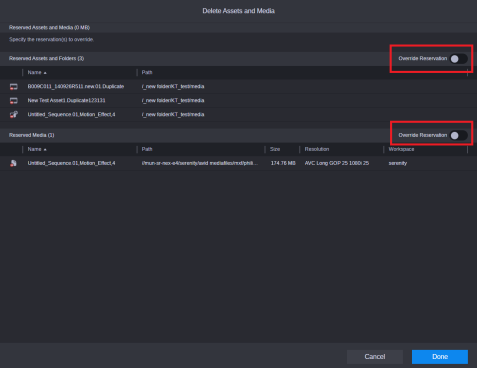
You can also remove reservations on assets manually before performing the deletion process. For more information about setting reservations, please visit the topic Setting Reservations (Avid Production Management).
-
Once the reserved assets have been overridden you will see a new message near the bottom of the Delete dialog window warning you that the reserved assets will be deleted once you proceed with deletion.
-
Click Permanently Delete to start the deletion process.
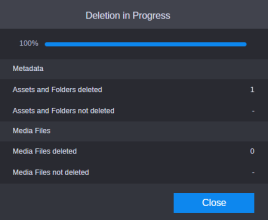
A small notification window appears at the bottom right of your screen displaying the status of your delete request. You can close this window once you are finished with the process.