Duplicating Assets
You can duplicate assets in both MediaCentral | Production Management (MC|PM) and Avid Production Management (Avid PM) databases. The process for duplicating assets depend on which database you are performing the operation on. This topic discusses the steps in duplicating MC|PM and Avid PM assets.
Duplicating Assets in the MediaCentral | Production Management Database
You can duplicate assets in the MediaCentral | Production Management (MC|PM) database. Duplicating an asset creates a new asset with new Mob ID and same metadata as the source asset.
The Duplicate feature is available for all MC|PM asset types.
To duplicate an asset in a folder:
-
Locate the asset to be duplicated in the Browse app folder.
-
Do one of the following:
-
Right-click on the asset and select Duplicate from the context menu.
-
Select the asset, click the App Menu button and select Duplicate.
A new asset is created in the same folder as the original asset, with the extension _Dup_<timestamp integer value>.

-
-
(optional) Rename the duplicate asset.
For more information, see Renaming Assets.
Duplicating Assets in the Avid Production Management Database
With Avid Production Management, you have the ability to duplicate assets as well as set its target folder location as you duplicate the asset.
To duplicate an asset in a folder:
-
Locate the asset to be duplicated in the Browse app folder.
-
Do one of the following:
-
Right-click on the asset and select Duplicate to from the context menu.
-
Select the asset, click the App Menu button and select Duplicate to.
-
-
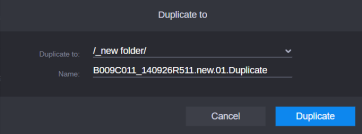
The Duplicate to window opens and allows you set the following parameters:
-
The target folder in which the duplicated asset will be saved. You should be able to select the folder within the Avid PM database where you want the asset to be duplicated, as long as you have the appropriate Read and Write access to that specific target folder.
-
The name of the asset. The duplicated asset creates a new asset with new Mob ID and same metadata as the source asset.
-
-
Select Duplicate.
-
(optional) You can still rename the duplicated asset even after already setting its name in the Duplicate to window.
For more information, see Renaming Assets.