Creating an Additional Translation for a Transcript
For
-
Create
-
Re-create the
c If a re-
c Triggering
The workflow for both use cases is quite the same, as described in the following procedure. Note that the Create New
To create
-
Open an asset in the Transcript tab.
-
Select the transcript from the Transcript selection control.
-
Click the

If there is at least one translation available for the transcript, the tab shows the first translation for the transcript.
-
 Click the Create New Transcript or Translation button in the Transcript tab toolbar and then select Create New
 If the button is not shown, click the More Options button and select Create New Transcript or Translation > Create New
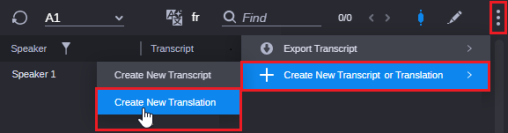
The
-
(optional) Select the transcript for which a translation is to be generated from the Transcript list.
The Transcript list shows the available transcripts of the asset.
-
Select the language of the translation from the Target Language list.
-
Click the
The dialog box is closed and the
If a selected
-
"The translation you selected for this transcription is already completed, would you like to re-translate?"
-
"The translation you selected for this transcription is in progress, would you like to re-translate?"
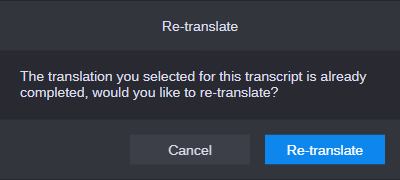
Do one of the following:
-
Click Cancel to keep the already existing
-
Click Re-
-
-
Select the
The view does not automatically switch to another
Example: The translation French was shown in the Translations view when you triggered translation creation for the language German; the Translations view will not automatically switch to German but keeps on showing French. You need to select German from the translation selection.
-
(optional) Open the Process app and monitor the
-
Wait until the
-
Once the translate job has completed, the Translate view display auto-refreshes and all translated segments are automatically shown.
-
If the translate job fails before completion, the Translation in progress message will be replaced by the Translation failed message.
-