Creating the Initial Translation for a Transcript
To create the initial
c You can start
To create the initial
-
Open an asset in the Transcript tab.
-
Select the transcript from the Transcript selection control.
-
Click the

If the
Only for users of a group that has the entitlement Avid AI
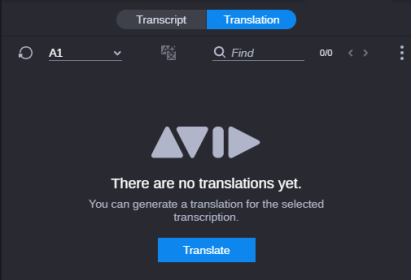
The
-
Click the
The
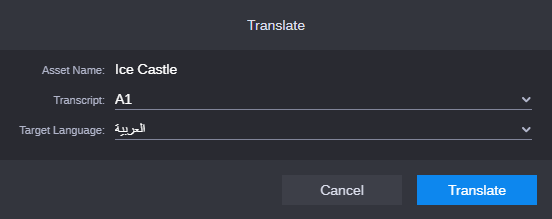
For a sublip, the following is shown:
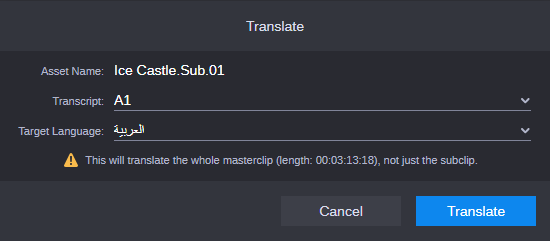
-
Do not change the transcript that is already selected in the Transcript list.
-
Select the language of the translation from the Target Language list.
The list shows the localized labels of all supported languages. If your administrator has defined a default translation language in the Avid AI admin app, the language is preselected in the Target Language list; if no default translation language has been defined, the top-most language in the list is preselected.
-
Click the
The dialog box is closed and the
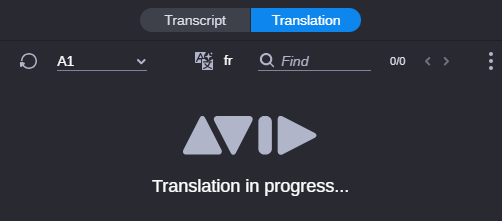
If the
-
(optional) Open the Process app and monitor the
-
Wait until the
-
Once the translate job has completed, the Translate view display auto-refreshes and all translated segments are automatically shown.
-
If the translate job fails before completion, the Translation in progress message will be replaced by the Translation failed message.
-