Accessing the Translation of a Transcript
Accessing a translation of a transcript is a pretty basic operation, as described in the following procedure.
To access the translation of a transcript:
-
Load a master clip or subclip into the Asset Editor and click the Asset Editor’s Transcript tab.
The Transcript tab is opened in Transcript view.
If there is a transcript available at least for one audio track, the Transcript tab shows the first transcript selected in the transcript selection control.
-
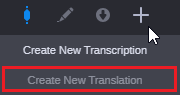
Click the Translation button to switch to Translation mode.

-
Select a transcript from the Transcript selection control.
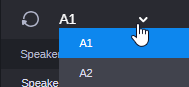
If there is at least one translation available for the transcript, the tab shows the first translation for the transcript.
-
Select a language from the Translation selection control.
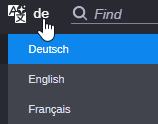
The translation is shown in the Transcript tab.
In some cases, you might see the following instead of the translation.
|
|
Reason/Action |
|---|---|
|
Translation view toggle button is disabled
Create New Translation menu item is disabled
|
There is no transcript for the asset. Before you can create or access a translation, the transcript must have been created. Possible reasons:
|
|
"There are no translations yet" The translation selection is dimmed and does not show a language code
|
The selected transcript has no translation. Select another transcript of the asset or consider triggering the translation creation. |
|
"Translation in progress" |
Wait until the translation job is completed. Once the translation job has completed, the Transcript tab display auto-refreshes and all translated segments are automatically shown. You can monitor the job progress in the Process app. See Monitoring Transcribe and Translate Jobs in the Process App. For translation jobs submitted by you, you will receive a notification once the job is completed. Prerequisite: Sending notification has been enabled for the Process app in the User Settings > Notifications section. See Using Process App Notifications. |
|
"Translation failed" |
Check the error message of the failed job in the Process app. For translation jobs submitted by you, you will receive a notification once a job failed (if sending notifications is enabled). |
|
"We encountered a problem and the translation couldn’t be loaded." |
The translation could not be loaded from the server. Contact your administrator. |