Using the Inspector App
 The Inspector app allows you to view information about selected local Avid Production Management assets from the Search or Browse app. The information is then available through a series of tabs which display the relevant details for each asset selected.
The Inspector app mirrors the functionality of the standalone Production Management Access app, allowing you to do more within MediaCentral | Cloud UX. For more information on Production Management Access, please visit the Production Management Access User Guide.
The following illustration shows the Search app open and docked to the left, with the Inspector app open with the Properties tab in focus on the right:
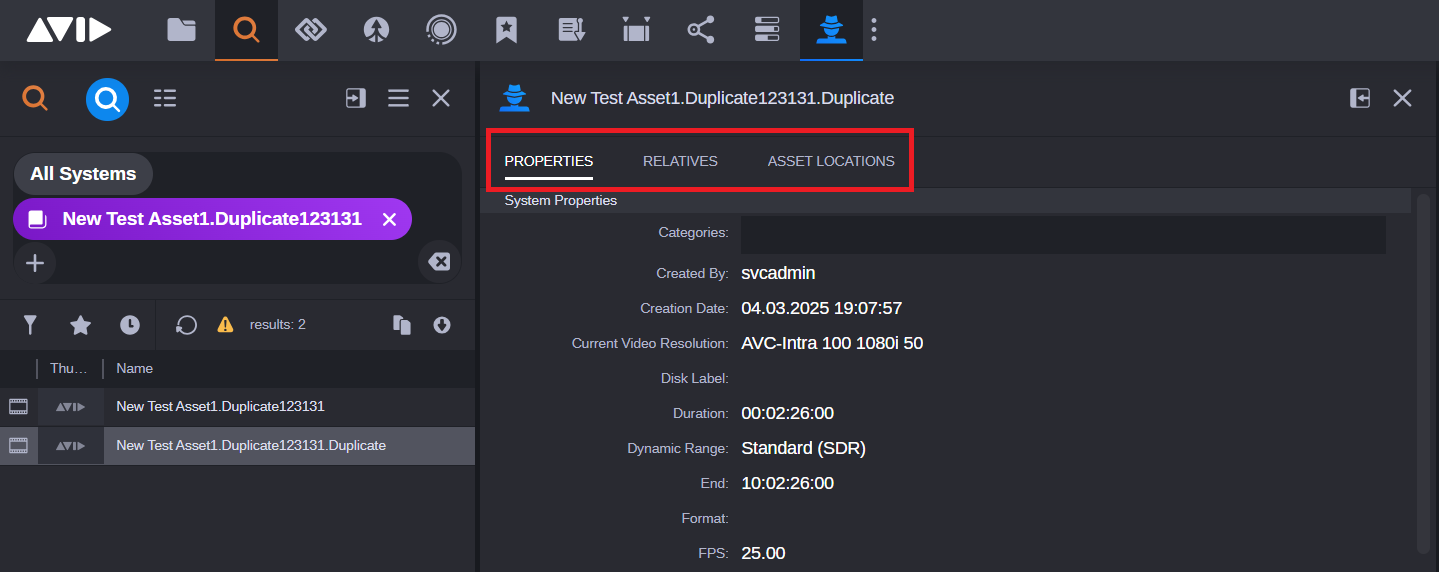
The following table describes the different tabs of the Inspector app:
|
Tab |
Description |
|---|---|
|
Properties |
The Properties tab displays metadata about a selected asset. This is similar to the Metadata tab found in the Asset Editor. For more information, see Using the Inspector Properties Tab. |
|
Relatives |
Assets can be associated with other assets. The Relatives tab displays the assets that are connected to each other and which other assets reference the selected asset. For more information, see Using the Inspector Relatives Tab. |
|
Asset Locations |
The Asset Locations tab point to where the asset is located in the database. For more information, see Using the Inspector Asset Locations Tab. |
Opening Assets in the Inspector
If you select the Inspector app from the Fast Bar, the app does not provide any default status information. In this case the user interface appears almost empty.
To examine an asset through the Inspector:
-
Right-click on the asset and select Open In > Inspector. For more information, please visit Choosing the App for Opening Assets.
-
If you have Search or Browse docked, you can select an asset from the results area of those apps with a single click and it will automatically be loaded into the Inspector app.