Using the Transcript Tab
Powered by Avid AI, the Transcript tab shows the speech to text (Transcribe) output of your asset's audio. Transcribe workflows, at the highest level, include the following: A request is made for an analysis service to process some audio, convert spoken words into text and then deliver the text along with timing data that map the words to offsets into the audio; the transcript text is added to segments that are automatically divided by each individual speaker. Additionally, the Transcript tab provides the option to create a translation of each transcript.
Transcribe operations on assets and transcript translation can be initiated either by automation (rules defined in the Rules Editor app, scheduled jobs defined in the Schedule Editor app) or by manual interaction in the Transcript tab.
n The Transcript tab is only shown when the feature pack STT is installed and can only be used when the required licenses (Avid Ada Transcribe ) is activated. Transcript creation and editing features in the Transcript tab are controlled by an entitlement (Avid AI Transcribe RW Access) that is assigned on group level. To additionally use translation features in the Transcript tab, the entitlement Avid AI Translate RW Access is required.
Users of a group that has the following entitlements assigned can do the following in the Transcript tab:
|
Entitlement |
Enabled Features |
|---|---|
|
Avid AI Transcribe RW Access |
|
|
Avid AI Translate RW Access |
|
|
<no entitlement assigned> |
|
Limitations
In this release, only Production Management assets are supported for transcripts, as follows:
-
Avid Production Management and MediaCentral Production Management master clips and subclips are supported; other asset types are not supported.
-
Growing/Edit while capture (EWC) files are supported.
-
Remote assets are not supported.
The following limitations apply to transcript creation:
-
Avid Transcribe uses an Artificial Intelligence (AI) / Machine Learning (ML) model to produce transcripts and speaker labels from assets that include non-musical, spoken word. In terms of a newsroom workflow, this might be identified as a VO or "talking head". As with all AI/ML models, results might be incorrect as the model is predicting the output from the provided input. Therefore, the Transcript tab provides options to correct any of these errors.
-
Avid Transcribe results are directly impacted by the quality of audio signal being transcribed. For accurate transcriptions, it is important to ensure the audio signal has a reasonable signal-to-noise ratio (SNR).
-
Creating transcripts is covered with a quota license that tracks and limits the number of hours of transcribed audio.
-
Only a completely created transcript can be edited. The transcript portions already shown for EWC clips or very long clips are read-only until the transcribe operation is completely finished.
-
If a re-transcribe job for a transcript is triggered, all edits made to the transcript will be overwritten.
The following limitations apply to translation creation:
-
Only a completely created translation can be edited.
-
Editing options for translation are restricted to modifying the translation text.
-
If a re-translate job for a transcript is triggered, all edits made to the translation will be overwritten.
Basic Interaction Patterns
Note the following basic interaction patterns:
-
When the STT feature pack is installed but the required license is not activated, the Transcript tab shows the “Your system is not licensed for this feature. Please contact your system administrator for assistance” message.
-
When no asset is loaded in the Asset Editor, the Transcript tab shows an “Asset is not loaded” message.
-
The Transcript tab shows an “Asset is not supported” message:
-
If there are no audio tracks for the asset.
-
If the system type of the asset is not Production Management.
-
If you open an asset that does not support the transcript feature (for example, a sequence or group clip).
-
-
If for none of the tracks a transcript has been created yet, the Transcript tab shows a “There is no transcript yet” message and a Transcribe Asset button.
The Translation controls are disabled.
-
If there is transcription at least available on one track, the Transcript tab selects the first audio track with transcription.
The Translation controls are enabled.
Right-to-Left Languages
The Transcript tab supports right-to-left languages:
-
You can display and edit text in right-to-left languages (for example, Arabic or Hebrew). MediaCentral Cloud UX recognizes right-to-left characters (RTL). If the entire text or more than 50 percent of the text in a transcript segment consists of right-to-left characters, the text direction in the transcript segment changes to right-to-left.
-
The same applies when you merge two transcript segments or move a portion of a segment text into another segment by using the Change Speaker feature: when more than 50 percent of the text in the merged transcript segment consists of right-to-left characters, the text direction in the transcript segment changes to right-to-left as soon as you click outside the field.
Searching for Transcript Data
After you have transcribed an asset, you can use either the Any or the Markers & Segments (simple or advanced) pill types in the Search app to search for the Speaker or Transcript text. Searches return master clips and subclips that include the matching transcribe text.
If you are using the Timeline view of the Search app's Inline Hits window, the transcript is displayed as one segment per sentence, and not as a 1:1 representation of the Transcript segments. Each segment includes information about the transcripted audio, speaker, language, and track.
For more information on Search, see Using the Search App.
Transcript Tab Layout
The following illustration and table describe the layout of the Transcript tab.

|
|
Item |
Description |
|---|---|---|
|
1 |
Transcript/Translation tabs |
Let you switch between Transcript and Translation mode in the Transcript tab. By default, the Transcript mode is enabled. |
|
2 |
Reload button |
Reloads transcripts and translations. |
|
3 |
Transcript selection |
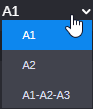
Lets you select the completed, failed, or currently being created transcripts of the asset. If no name was specified, each transcript is named according to the audio track for which is was created. If several audio tracks have been selected for transcript creation at the same time, the tracks are mixed down into one track and a transcript for the mixed down audio track is created; the name of the transcript shows the included audio track names, for example "A1-A2-A3".
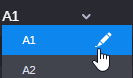
You can use the transcript selection to rename a transcript at any time. When you hover the cursor over a transcript name the Edit button is shown.
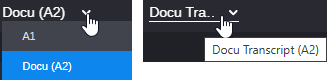
For a renamed transcript, the track name is additionally shown in brackets. If the name cannot be shown completely in the transcript selection, you can see the full name and track in a tool-tip.
For more information, see Renaming Transcripts. When you select a transcript from the list, it is shown in the Transcript area.
When no transcript has been created for the asset yet, the list shows the "There are no items in this list" entry.
|
|
|
Translation selection (not shown in the illustration) |
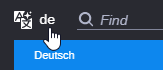
(only shown in Translation mode) Lets you select one of the available translations of the transcript. The language code is shown in the toolbar, the language label is shown in the list.
For more information, see Using Translations. |
|
4 |
Find field |
Lets you search words in the transcript or translation text.
|
|
5 |
Sync Playhead button |
Toggles the synchronization of the position indicator (playhead) and transcript or translation on and off :
When you enable Edit Mode to edit the transcript or translation text, Sync Playhead is toggled off. For more information, see Navigating within the Transcript and Navigating within the Translation. |
|
6 |
Edit Mode button |
Toggles the edit mode for the Transcript/Translation area on and off :
For more information, see Editing a Transcript and Editing the Translation Text. |
|
7 |
Export button |
Lets you export the transcript or translation to your local workstation. Supported formats are *.txt, *.csv and *.srt.
For more information, see Exporting the Transcript and Exporting the Translation. |
|
8 |
Create New Transcript or Translation button |
Gives you access to the following "create" features:
|
|
|
More Options button (not shown in the illustration) |
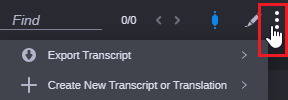
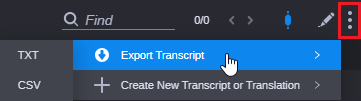
If you reduce the width of the Asset Editor to a point at which all buttons cannot be displayed at the same time, the Transcript tab responsively scales by hiding buttons from right to left. Appearing to the far right of the Transcript header the More Options button lets you access the hidden buttons in a menu. By default, the Export Transcript and Create New Transcript or Translation buttons are shown in the More Options menu.
All buttons to the right of the Transcript selector – but not the Word filter field – can appear in the More Options menu. If an item in the More Options menu has at least one additional sub-item, an expand arrow is displayed, as shown in the following illustration for Export Transcript.
|
|
9 |
Transcript/Translation area |
Shows the contents of the selected transcript or translation in a table. Each row consists of the following:
|